Download stock firmware for ThL W8 Beyond 5 Inch quad core smartphone


Download stock firmware for ThL W8 Beyond 5 Inch quad core smartphone from here, here or here.

Firmware version = ThL_W8.JB2.FHD.EN.COM.8P128_MT6589V1.0.3_20130425

ThL's already famous W8 has been upgraded with the latest MTK6589T CPU and the newly christened “ThL W8 Beyond” now comes with a whopping 1.5GHz Quad Core CPU and 1080p full HD screen, blasting its way through your apps. With more than 10 years of experience manufacturing Android Phones, ThL has managed to establish a broad customer base around the world and their latest flagship phone is definitely bound to impress. Clocking in at 1.5GHz, the brand new MTK CPU will power through your apps and make sure everything runs smooth. But there is more! The “Beyond’s” 5 Inch 1080p screen will display all your multimedia in full HD and deliver unseen results in terms of image sharpness. With a Pixel Density of 440 pixels per inch, you won’t even be able to distinguish separate pixels at a normal viewing distance.

Rocking Android’s latest OS, Android 4.2, the “ThL W8 Beyond” takes the speed and simplicity of Jelly Bean to a different level. Coming with a completely new camera experience that’s beyond smart, a new form of typing that helps you power through your messages so much more, the “ThL W8 Beyond” truly goes above and beyond! Remaining unchanged, the extraordinary 13MP camera will still amaze you by taking sharp, always in focus images. And with 16GB of internal memory you’ll have plenty of space to store all those HD pictures, videos, apps and music. Naturally, the usual Bluetooth, GPS Navigator, 3G and 1GB RAM come standard! 

At a Glance...
  • Upgrade to ThL's Famous W8
  • 1.5GHz Quad Core MTK CPU
  • 5 Inch Full HD Screen
  • 1920x1080 Resolution
  • 440 PPI
  • 13MP Camera
  • Android 4.2

Download stock firmware for HexTab tablet 9 inch A13 Cortex A8


Download stock firmware for HexTab tablet 9 inch A13 Cortex A8 from here, here or here.

Firmware details 
OS = Andoid ICS 4.0.4
FW version = 1.5
Style = KB901
Company = softwinners
Pixels = 800 x 480
Version no = nuclear_evb-eng 4.0.4 IMM76D 20121123 test-keys

The “HexTab” comes with enough specifications and capabilities to keep anyone pleased and well worth the cost. A 1.2GHz CPU will smoothly run all the fun and productive apps you download. While the 8GB internal memory mixed with up with up to 32GB extended memory via a microSD will give you plenty of space to download and store your music, videos, pictures and apps. Steaming video and Download speeds will not be an issue with a Wifi B/G/N receiver built in. An included camera, a 3D graphical processor for gaming, and the wealth of the Google Play Marketplace applications running on the best android OS yet, will make sure this is a MID that will be useful and fun in any situation. 

At a Glance...
  • 9 Inch Capacitive Screen
  • 1.2Ghz A8 Processor
  • 512MB RAM
  • Micro SD Slot
  • Budget Tablet

Download stock firmware for Pulse tablet 7'' 2918 Cortex A8


Download stock firmware for Pulse tablet 7'' 2918 Cortex A8 from here, here or here.

Pulse tablet
Powered by a 1GHz CPU, running demanding apps is like a walk in the park for this Android Ice Cream Sandwich Tablet PC. 4GB of internal memory gives you enough space to store away all your pictures, movies and music and you can even extend the internal memory with a micro SD card up to 32GB. Connecting your Tablet to your TV is made easy thanks to the HDMI and this way, you’ll be able to show your friends and family whatever you see on your tablet’s screen on your TV! A built-in front camera lets you snap a quick picture or even make Skype Video calls with the “Pulse”


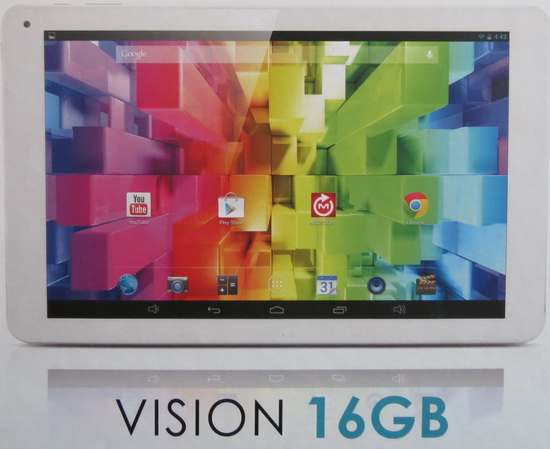
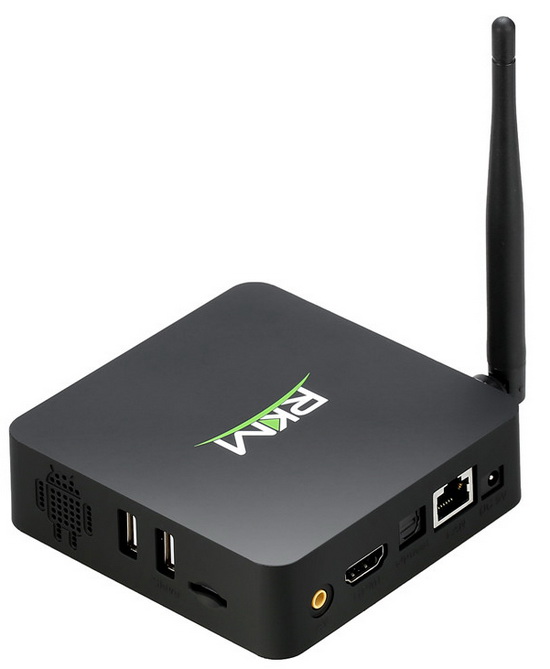
Video HD: Wireless screen projection from E-ceros Vision tablet to RKM MK902 TV Box via WiFiDisplay


I tested the WifiDisplay application on two Android devices and worked like a charm. In my video you can see the screen of E-ceros Vision tablet projected to my TV via RKM MK902 TV Box.

E-ceros Vision tablet runs Android Jelly Bean 4.2.2
RKM MK902 TV Box runs Android KitKat 4.4.2.

How to use HDMI video output from E-ceros Vision tablet on a Samsung Smart TV


To use HDMI video output on E-ceros Vision tablet you have to make sure that HDMI out is turned on. To verify that go to 'Settings' --> hdmi --> then check 'Turn on HDMI' option. Connect your tablet to your TV via a HDMI cable then from TV menu change the source according to one from the connected HDMI.


I use it on my Samsung Smart TV model UE46EH5300 and I was helped by a fly mouse and mini keyboard combo model RKM MK704.

Video HD: SMIC717394 KitKat 4.4.2 Custom Rom V2 installed on RKM MK902 TV Box


Download SMIC717394 KitKat 4.4.2 Custom Rom V2 from here, here or here

About this firmware version
- Android KitKat 4.4.2
- Screen resolution: 1280 x 720 @ 60 Hz
- Score in new Antutu X Benchmark: 19.476 points;
- this firmware is rooted;
- Kernel version: 3.0.36+
- Build number: RKM MK902_rk3188-eng 4.4.2 smic717394 eng.zz.20140411.095242 test-keys
- Boot version: 2.13
- Miracast support / WiFiDisplay app

- Play Store / gapps preinstaled
- Debloat: Remove as much junk as possible to create more space for apps and for faster boot.
- init.d support: Added full init.d support so you can run your scripts.
- Build.prop: Optimized Build.prop for better networking and video playback.
- Kernel OC: Kernels are the same OC to 1.6, 1.7 (default) and 1.8. There is a new 1.6NOC version without the vsynk fix.
- Wallpaper: Replaced the default wallpaper. I hope you guys like it.
- Reboot: Fix the reboot app.


Instructions

1. Download the firmware archive and extract it on desktop.
2. Second, connect MK902 to your computer. Prepare an USB cable (male USB to male USB cable); insert one USB port to computer usb host. Prepare also a thin metal stick; press the recover button like in the image below. Don’t loose the stick, at same time, insert the another USB port to the unit USB slave  port. After 3-5 seconds, loose the stick.


3. Install driver using RK Driver Assistant
4. Erasae IDB and the burn the image with RKAndroidTool using 'Flash Rom' button.


This process will take about 4 minutes, please wait patiently, during recovery/upgrade, don’t remove the USB cable and don’t power off during updating or recovering. First reboot of the unit after recovery/update will take more long time than usual, and even occur some lag issue, it’s normal since internal apk files need to be decompressed and occupy RAM, after 5 minutes, then system will be running well. So don’t worry about that.

Video HD: How to use 3G Modem dongle and enable mobile data on E-ceros Vision tablet with Android Jelly Bean 4.2.2


This is a simple tutorial on how to enable and use mobila data connection on E-ceros Vision tablet with Android Jelly Bean 4.2.2 operating system by using a 3G Modem dongle.

1. First you have to root your tablet following this simple video tutorial.
2. Go to Play Store and look for PPP Widget. Install it for free and put the PPP Widget to your tablet home screen. Give root acces to this app, turn off your WiFi connection then plug in your 3G Modem dongle. Basically you're good to go, it depends on your 3G Modem dongle model and your mobile data carrier. 

In my case I used ZTE MF110 dongle from Digi Net Mobil (Romania).